


 Rumahweb
Setelah mendesain dan menguji website Anda melalui server local pada PC, langkah berikutnya adalah melakukan upload Joomla ke hosting Anda, dan mengupdate konfigurasi sedemikian rupa sehingga Anda bisa melihat hasilnya secara online. Pada panduan ini, kami akan berbagi cara upload Joomla ke hosting berbasis cPanel di Rumahweb.
Kendala yang paling sering muncul pada saat upload Joomla lokal ke server hosting terletak pada konfigurasi database MySQL dan bagaimana cara mengupload file-file instalasi joomla tersebut agar tidak mengalami kegagalan.
Tutorial di bawah ini memberikan anda langkah-langkah yang dibutuhkan untuk memindahkan situs Joomla dari komputer lokal Anda ke server. Detailnya, silahkan ikuti langkah dibawah ini :
Step 1. Upload database
Membuat database di cPanel
Jika anda belum memiliki database di server, silahakan dibuat dahulu. Membuat database MySQL bisa dilakukan di cPanel > MySQL Database. Dari sana bisa diperoleh :
• Nama database
• Username database
• Password database
Panduan membuat database di cPanel bisa anda lihat pada artikel : cara membuat database di cPanel

Backup database di Komputer lokal
Berikut langkah-langkah yang bisa anda lakukan, untuk melakukan backup database di localhost :
- Akses phpMyAdmin melalui http://localhost/phphmyadmin
- Pilih database Joomla yang ingin diupload dari drop down menu “database“.
- Setelah database dipilih dan menampilkan table-tablenya, klik pada tombol “export”
- Centang “Save as file” tekan tombol “go” di kanan bawah browser. Browser akan mengeluarkan konfirmasi penyimpanan ke local komputer.

Import database melalui phpMyAdmin di cPanel
Setelah selesai membuat database dan user, serta export database di computer local Anda. Silahkan buka menu phpMyAdmin di cPanel Pilih database Joomla yang tadi anda buat di step pertama.
Setelah database dipilih, klik pada tombol “import” dan browse file backup database dan “Go” untuk import. Untuk detailnya bisa anda lihat di artikel cara upload mysql database.
Step 2. Upload file dan update konfigurasinya
Upload file Joomla
Sebelum anda upload file Joomla ke server melalui FTP, sebaiknya kompresi dalam satu file format Zip dahulu ke semua file dan direktori installasi Joomla di computer local anda. Gunakanlah kompresi normal (standar) untuk zip file dan direktori Joomla.

Setelah file .zip Joomla di localhost telah anda backup, selanjutnya anda bisa mengupload file tersebut ke hosting melalui cPanel. Langkahnya sebagai berikut :
- Login ke cPanel hosting anda melalui namadomain/cpanel.
- Klik menu File manager
- Klik folder public_html, lalu klik tombol upload seperti gambar berikut:

Catatan:
Pemilihan directory ini disesuaikan dengan domain yang akan digunakan. Pada contoh, kami menggunakan domain utama yang memiliki dokumen root di public_html. Jika anda ingin upload ke addon domain atau subdomain, silahkan upload pada directory root-nya masing-masing.
- Silahkan klik tombol select file, lalu pilih file .zip Joomla yang telah anda siapkan. Tunggu hingga upload file .zip selesai.

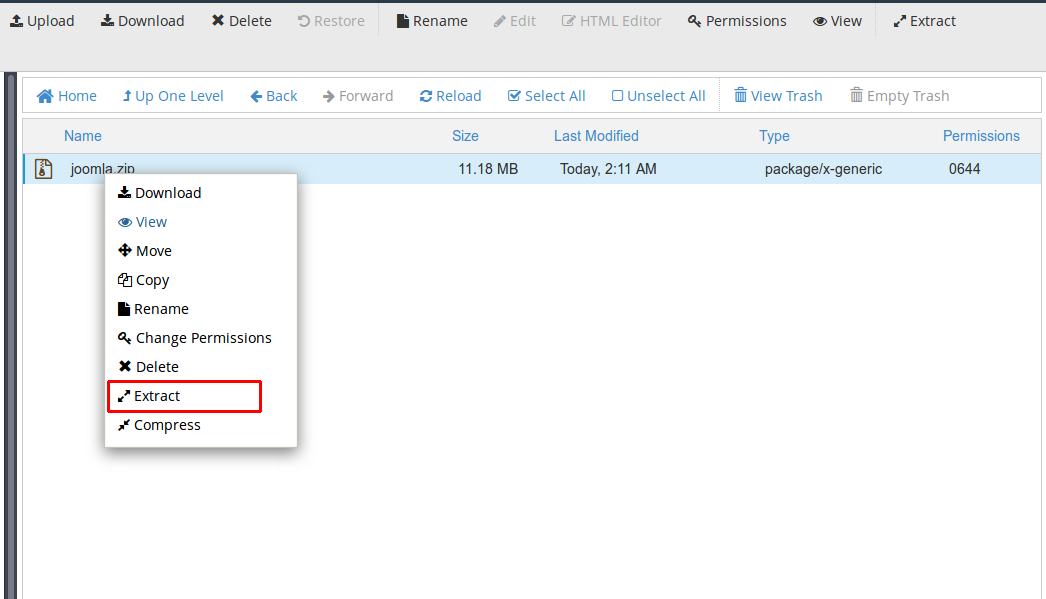
- Setelah upload .zip Joomla anda selesai, silahkan klik kanan pada filenya, lalu pilih extact seperti pada gambar.
Setting file Configuration.php
Setelah sampai pada step 5 diatas, anda bisa mencoba untuk mengakses web Anda dan biasanya akan ditemui sebuah kesalahan/pesan error. Hal ini karena file configuration.php dari server lokal Anda tidak berisi informasi yang berhubungan dengan rincian account hosting Anda.
File configuration.php menyimpan informasi mengenai database, user, password, path dan lain-lain. Anda perlu mengubah rincian di dalamnya sebagai berikut :
- Cari configuration.php di direktori Joomla anda.
- Klik kanan pada file tersebut dan klik ‘Edit’

- Dalam file script tersebut, cari baris code sebagai berikut :
- public $log_path = ‘’;
- public $tmp_path = ‘’;
- public $live_site = ‘’;
- public $host = ”;
- public $user = ‘’;
- public $db = ‘’;
- public $password = ”;
Contoh perubahan konfigurasi yang telah dilakukan:
- public $log_path = ‘/home/[ UserCpanel ]/public_html/logs’;
- public $tmp_path = ‘/home/[ UserCpanel ]/public_html/tmp’;
- public $live_site = ‘http://YourDomain.com’;
- public $host = ‘localhost’;
- public $user = ‘[ UserCpanel ]_ UserDatabase’;
- public $db = ‘[ UserCpanel ]_ NamaDatabase’;
- public $password = ‘PasswordDatabase’;
Setelah selesai mengganti konfigurasi, tekan tombol Save Changes. Silahkan ditest web anda dengan mengakses ke http://YourDomain.com
Note:
- Nama database dan username akan diberi prefiks “[ UserCpanel]_” dimana UserCpanel ini diambil dari username login cPanel.
- Jangan lupa password user MySQL case-senditive.
- Setting var $host harus selalu ‘localhost’
Apabila konfigurasi telah selesai, silahkan untuk mencoba akses nama domain anda di browser. Jika website berhasil diakses, artinya konfigurasi yang telah anda lakukan berhasil.
Demikian cara upload joomla ke hosting cPanel dari Rumahweb, semoga bermanfaat.


